
Local API Server
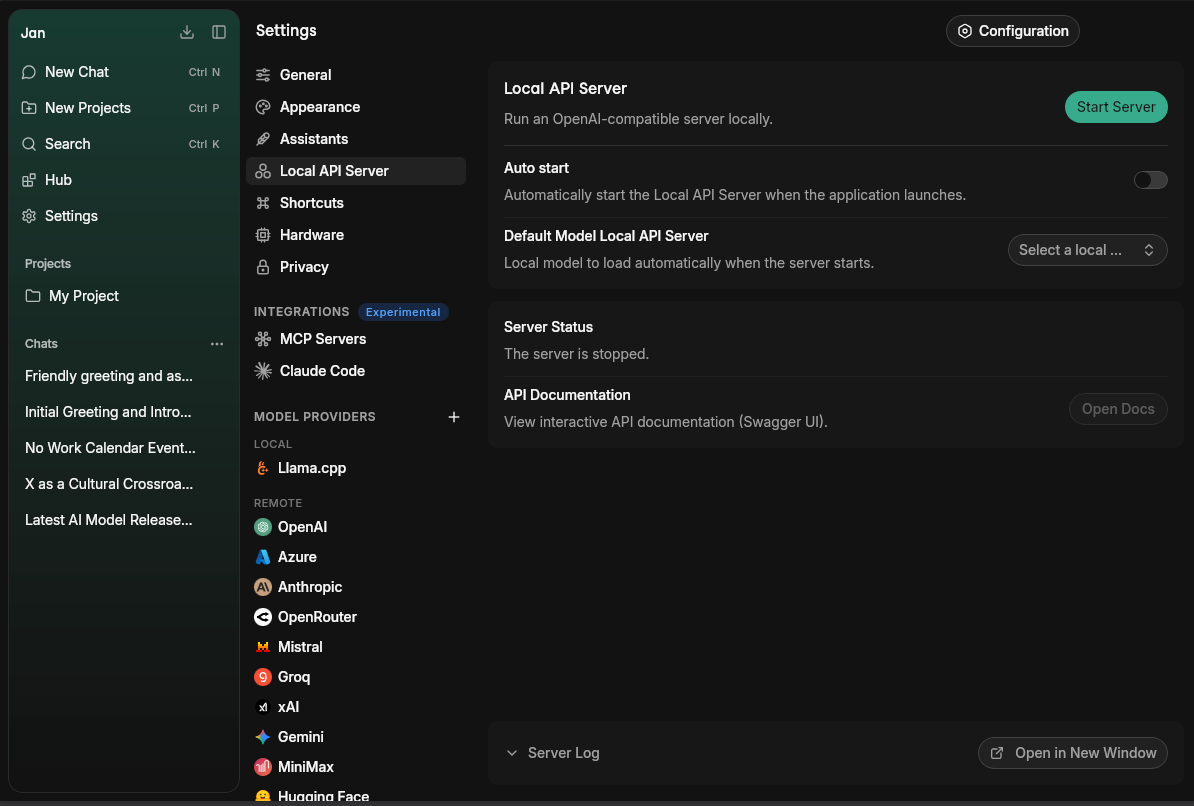
Jan provides a built-in, OpenAI-compatible API server that runs entirely on your computer, with local models powered by llama.cpp or MLX (on Apple Silicon Macs). Use it as a drop-in replacement for cloud APIs to build private, offline-capable AI applications.
Prerequisites
The server needs a local model that Jan can load to start. The default-model picker offers llama.cpp and MLX models. On macOS, this requires Apple Silicon: the bundled llama.cpp engine does not load models on Intel Macs as of v0.8.5, and MLX also requires Apple Silicon. Once running, the server can also route requests to configured remote or custom providers, but those providers do not replace the local-model startup requirement. Requests routed to remote providers are not offline or confined to your computer. See Mac installation.
Quick Start
Start the Server
- Download or import a local model into Jan before starting the server. Use a llama.cpp model, or an MLX model on an Apple Silicon Mac.
- Navigate to Settings > Local API Server and select your model under Default Model Local API Server.
- Click Start Server. Jan uses an already-loaded model if one is running; otherwise, it loads the selected default model before starting the server.
Wait for Server Status to show that the server is running. With the default settings, the API base URL is http://127.0.0.1:1337/v1.
Test with cURL
Open a terminal and make a request. Replace YOUR_MODEL_ID with your local model's ID and YOUR_API_KEY with the key configured in Configuration > API Key. If no key is configured, omit the Authorization header. The example uses the default host, port, and API prefix.
curl http://127.0.0.1:1337/v1/chat/completions \
  -H "Content-Type: application/json" \
  -H "Authorization: Bearer YOUR_API_KEY" \
  -d '{
    "model": "YOUR_MODEL_ID",
    "messages": [{"role": "user", "content": "Tell me a joke."}]
  }'
Server Configuration
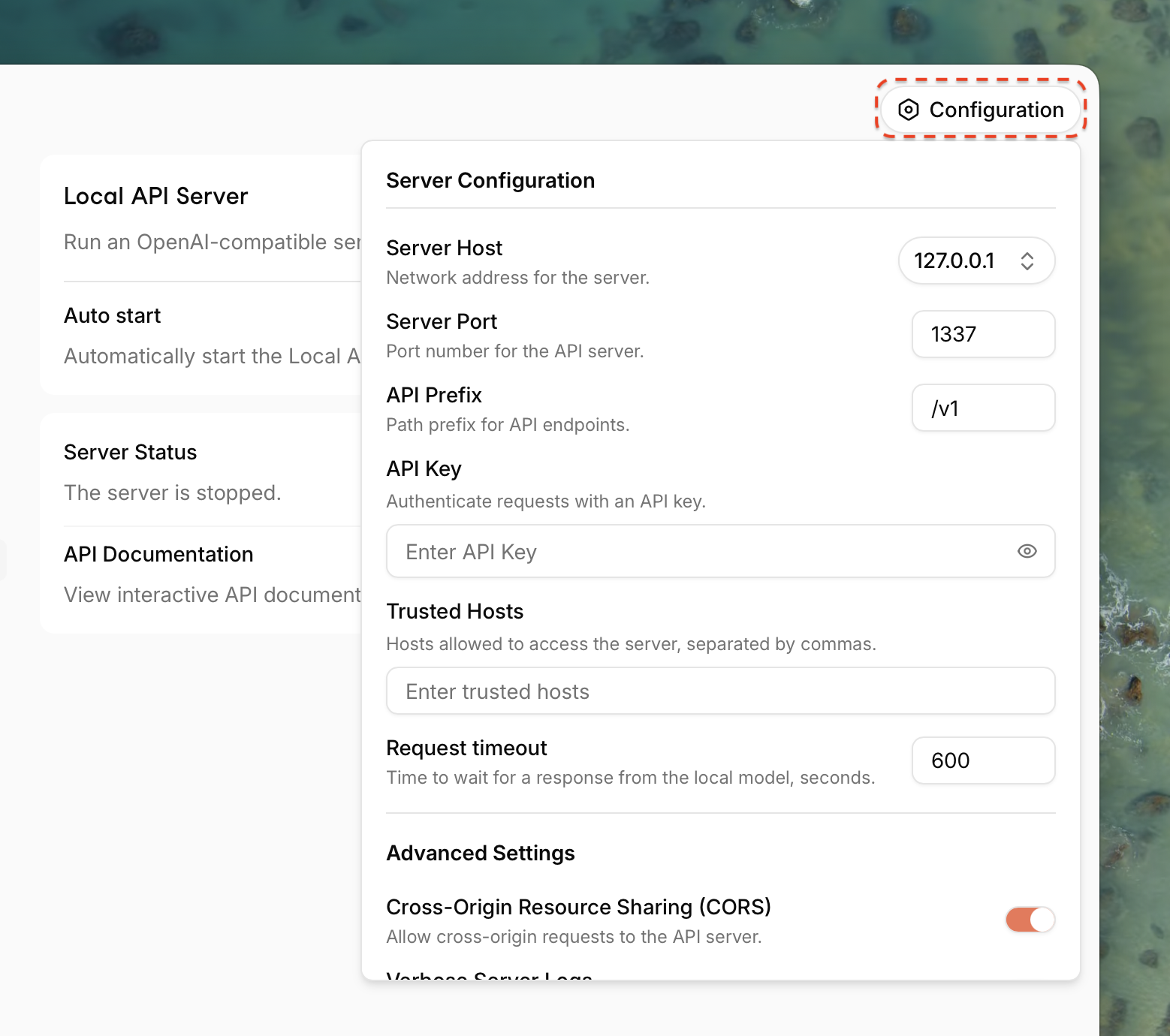
These settings control the network accessibility and basic behavior of your local server. Access them via the Configuration button in the top right.
Server Host
The network address the server listens on.
127.0.0.1(Default): The server is only accessible from your own computer. This is the most secure option for personal use.0.0.0.0: The server is accessible from other devices on your local network (e.g., your phone or another computer). Use this with caution.
Server Port
The port number for the API server.
1337(Default): A common alternative port.- You can change this to any available port number (e.g.,
8000).
API Prefix
The base path for all API endpoints.
/v1(Default): Follows OpenAI's convention. The chat completions endpoint would behttp://127.0.0.1:1337/v1/chat/completions.- Use
/to serve endpoints at the root, such ashttp://127.0.0.1:1337/chat/completions. If you clear the field, Jan resets it to/.
API Key
A secret key used to authenticate requests.
- Set any string (e.g.,
a-secure-password). If a key is configured, requests must include it in theAuthorization: Bearer YOUR_API_KEYheader. - Leave the field empty to disable authentication (not recommended when binding to
0.0.0.0).
Trusted Hosts
A comma-separated list of hostnames allowed to access the server. This provides an additional layer of security when the server is exposed on your network.
Request Timeout
How long (in seconds) the server waits for a response from the local model before giving up. Increase this if you are running large models on slow hardware and see request timeouts.
Advanced Settings
Execute Tools on Server
- (Disabled by default) When enabled, MCP tool calls triggered through the chat completions endpoint (
/v1/chat/completionswith the default API prefix) are executed server-side rather than being returned to the client to dispatch. Leave this off if your client app handles tool execution itself.
Cross-Origin Resource Sharing (CORS)
- (Enabled by default) Allows web applications (like a custom web UI you are building) running on different domains to make requests to the API server.
- Disable this if your API will only be accessed by non-browser-based applications (e.g., scripts, command-line tools) for slightly improved security.
Verbose Server Logs
- (Enabled by default) Provides detailed, real-time logs of all incoming requests, responses, and server activity.
- This is extremely useful for debugging application behavior and understanding exactly what is being sent to the models.
Troubleshooting
Ensure Verbose Server Logs are enabled to get detailed error messages in the "Server Logs" view.
- Server fails to start because no model is available: Download or import a local model, then select it under Default Model Local API Server. If a model fails to load, check the server logs for the cause.
- Connection Refused: The server is not running, or your application is pointing to the wrong host or port.
- 401 Unauthorized: Your API Key is missing from the
Authorizationheader or is incorrect. - 404 Not Found:
- The
modelID in your request body does not match an available model in Jan. - Your request URL is incorrect (check the API Prefix).
- The
- CORS Error (in a web browser): Ensure the CORS toggle is enabled in Jan's settings.